How to Rotate PDF Pages Permanently (Not Just in the Viewer)
Rotating in your PDF viewer does not save to the file. This guide shows how to permanently rotate single pages, all pages, or mixed-orientation documents.
If you've ever shared a PDF only to have the recipient tell you the pages are sideways, or printed a document and found everything landscape when it should be portrait, you've run into one of the most frustrating PDF quirks: rotation that doesn't stick.
This guide explains why that happens, how to rotate PDF pages permanently, and how to handle different scenarios — rotating all pages, just some pages, or pages in alternating orientations.
Why Rotations Don't Always Save
Most PDF viewer applications (including Adobe Reader and macOS Preview) let you rotate pages for your current viewing session. Close the file and reopen it, and the pages snap back to their original orientation.
This happens because viewers display a temporary rotation preference stored locally — they don't modify the file itself. The PDF's internal rotation value remains unchanged.
To make a rotation permanent, you need to actually modify the file's page rotation metadata, not just how the viewer displays it. This is what a dedicated rotation tool does.
Viewer Rotation vs. Permanent Rotation
| Factor | Viewer Rotation | Permanent Rotation (AllPDFMagic) |
|---|---|---|
| Where the change is stored | Your device only | Inside the PDF file |
| Survives email / sharing | No — recipient sees original | Yes — everyone sees corrected orientation |
| Survives printing | No — printer uses file orientation | Yes |
| Survives reopening | Sometimes (viewer-dependent) | Always |
| Changes file size | No | Negligible (<1 KB metadata change) |
| Requires software | Built into any viewer | Free online tool |
| Affects file content | No | No (metadata only) |
| Best for | Personal viewing only | Any shared, printed, or archived document |
The key insight: viewer rotation is cosmetic for your screen session. Permanent rotation is the only approach that works reliably when documents will be shared, printed, or archived.
When You Need to Rotate PDF Pages
Scanned documents: Flatbed scanners and document cameras often produce pages in the wrong orientation depending on how the paper was placed. A contract scanned upside-down, or a portrait invoice that comes out landscape, needs correcting before distribution.
Mixed-orientation documents: Some documents legitimately have a mix of portrait and landscape pages (a report with a wide table inserted as a landscape page, for example). These pages need different rotation values embedded individually.
Mobile scans: Photos taken on a phone and converted to PDF sometimes retain the phone's accelerometer orientation rather than the visual orientation, producing rotated or inverted pages.
Inherited documents: You receive a PDF where the previous creator saved pages in the wrong orientation, and you need to correct it before passing it on.
How to Rotate PDF Pages Permanently
Using AllPDFMagic Rotate
AllPDFMagic Rotate PDF modifies the rotation metadata in the PDF file directly.
- Open the Rotate PDF tool
- Upload your PDF
- The tool displays thumbnails of all pages
- Click individual pages to rotate them 90° clockwise. Click again to continue rotating — 90° increments bring you to 180° and 270°
- Use the "Rotate all" button if every page needs the same correction
- Click Apply and download the corrected PDF
The download is a new file with the rotation baked in permanently. Anyone who opens it, in any viewer on any device, will see the correct orientation.
Rotating Specific Pages Only
If only some pages are in the wrong orientation:
- Click on each incorrectly oriented page thumbnail individually
- Rotate just those pages
- Leave correctly oriented pages untouched
This is useful for documents where one or two pages were scanned incorrectly, or where a landscape table is embedded in an otherwise portrait document.
Rotating All Pages at Once
If the entire document was scanned in the wrong direction:
- Upload the PDF
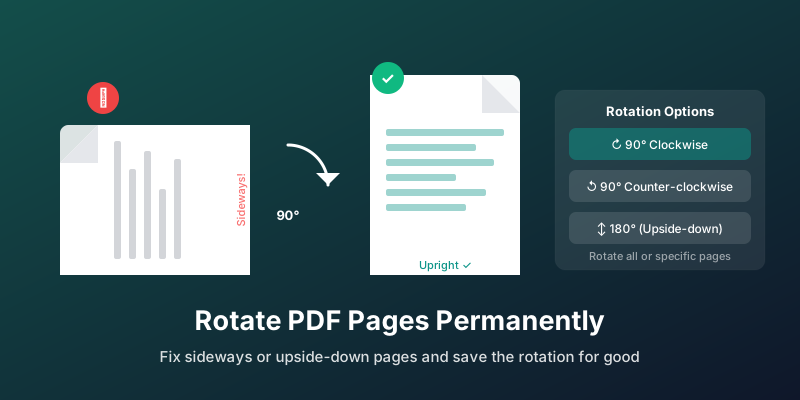
- Click "Rotate All" and choose the direction (90° clockwise, 90° counter-clockwise, or 180°)
- Apply and download
A 180° rotation flips every page upside-down — useful when a document was fed into a scanner face-down.
Clockwise vs. Counter-Clockwise: Which One Do You Need?
The confusion between these two directions catches many people out.
- Portrait page showing as landscape (text running along the left side): Rotate 90° clockwise
- Portrait page showing as landscape (text running along the right side): Rotate 90° counter-clockwise
- Page completely upside-down: Rotate 180° (direction doesn't matter for 180°)
If you're unsure, try one direction, preview the result, and use the undo or re-rotate if needed.
Fixing Scanned Documents in Bulk
If you have multiple PDFs from a scanning session where all documents came out sideways, the most efficient approach is:
- Merge all the incorrectly oriented PDFs into one file
- Rotate all pages at once
- Split them back apart into individual documents
This avoids rotating each PDF individually.
What Rotation Does (and Doesn't) Change
Rotating a PDF page permanently changes the page's stored rotation angle. Everything else stays exactly the same:
- Text remains fully searchable
- Images retain original resolution
- Hyperlinks continue to work
- Form fields remain interactive
- File security settings are preserved
The rotation is purely a metadata change about how pages are displayed — it doesn't re-render or re-encode any content.
Checking Orientation Before Sending
Before sending any scanned document or PDF you've received from a third party, it's worth opening it in a fresh browser tab (rather than your default PDF viewer, which might apply its own rotation preferences). If it displays correctly in the browser, it will display correctly for anyone who opens it with default settings.
Frequently Asked Questions
Why did my PDF rotate correctly in Preview but look wrong when I emailed it?
Preview saves a rotation preference for your device but often doesn't write it back to the file. The file itself remained in its original orientation. To fix this, use a tool that explicitly modifies the file, like AllPDFMagic Rotate PDF.
Can I rotate a single page in a multi-page document?
Yes. AllPDFMagic lets you rotate individual pages independently while leaving all others unchanged.
Does rotating a PDF affect its file size?
Negligibly. Rotation is a metadata value (a single number: 0, 90, 180, or 270). The actual page content isn't modified, so file size remains essentially the same.
Can I rotate a scanned PDF?
Yes. Scanned PDFs are images embedded in a PDF container, and the rotation metadata applies to the container just the same. The image content isn't altered; only the display angle changes.
Will the rotation stay when I print?
Yes. Permanently rotating the PDF ensures the printer receives the correct orientation instructions. If you've only rotated in a viewer (not saved), the printout uses the file's original orientation — which is why permanent rotation is important before printing.
What about password-protected PDFs?
An owner-restricted PDF (restricted from editing) may prevent rotation tools from saving changes. You'd need to unlock the PDF first, then rotate and re-apply protection if needed.
You might also find these guides helpful:
- Best Free PDF Reader Online — view PDFs in your browser
- OCR PDF: Extract Text from Scanned Documents — make scanned PDFs searchable
- How to Sign a PDF Online Free — add digital signatures
- How to Split a PDF File into Separate Documents — extract specific pages from a PDF
- How to Delete Pages from a PDF — remove unwanted pages
- How to Merge PDF Files Free — combine PDFs together
Rotate PDF pages permanently with AllPDFMagic Rotate PDF — free and no signup.
Frequently Asked Questions
Preview saves a rotation preference for your device but often doesn't write it back to the file. The file itself remained in its original orientation. To fix this, use a tool that explicitly modifies the file, like AllPDFMagic Rotate PDF.
Yes. AllPDFMagic lets you rotate individual pages independently while leaving all others unchanged.
Negligibly. Rotation is a metadata value (a single number: 0, 90, 180, or 270). The actual page content isn't modified, so file size remains essentially the same.
Yes. Scanned PDFs are images embedded in a PDF container, and the rotation metadata applies to the container just the same. The image content isn't altered; only the display angle changes.
Yes. Permanently rotating the PDF ensures the printer receives the correct orientation instructions. If you've only rotated in a viewer (not saved), the printout uses the file's original orientation — which is why permanent rotation is important before printing.