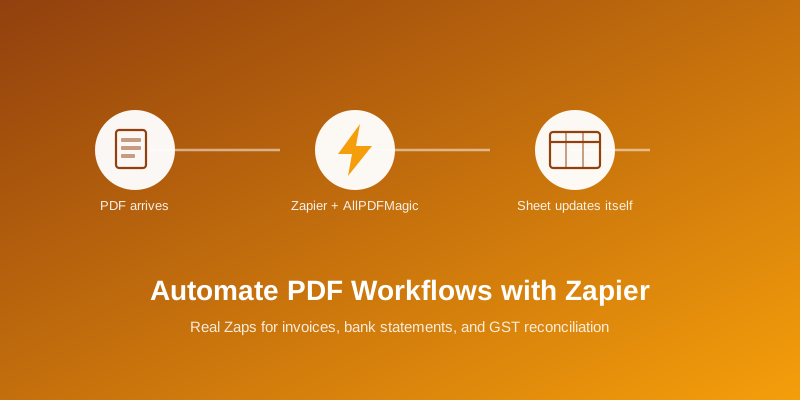
Automate PDF Workflows with Zapier: Real Zaps You Can Build Today
Five working Zaps using the AllPDFMagic Zapier app — invoice extraction, bank statement parsing, GSTIN validation, compression, and GSTR-2B reconciliation.
Automate PDF Workflows with Zapier: Real Zaps You Can Build Today
The manual version of most PDF/document work looks the same everywhere: an invoice arrives by email, someone opens it, someone re-types the numbers into a spreadsheet or accounting system, someone files the PDF somewhere. None of those steps need a human once the underlying extraction works reliably — which is exactly what Zapier is for: watch a trigger, call the tool that does the actual work, hand the result to the next app.
This walks through specific Zaps using the AllPDFMagic Zapier integration, not the abstract idea of "automation."
Setup, once
- Install the AllPDFMagic app in Zapier (search "AllPDFMagic" when creating a new Zap step).
- Connect it with an API key from your dashboard — the Free plan includes enough calls to build and test an entire Zap before paying anything.
- Every action below is a single step in a longer Zap — mix and match with whatever trigger and destination apps you already use.
Zap 1: Invoice inbox → structured spreadsheet row
Gmail (new attachment matching "invoice") → AllPDFMagic: Extract Invoice Data → Google Sheets (append row)
Every invoice that lands in a specific inbox gets its vendor name, invoice number, date, tax breakdown, and total pulled out automatically and appended as a row. No one opens the PDF by hand unless a number looks wrong.
Zap 2: Bank statement PDF → categorized transactions
Google Drive (new file in "Statements" folder) → AllPDFMagic: Parse Bank Statement → Google Sheets (create rows for each transaction)
Drop a bank statement PDF into a watched folder and get back categorized transaction rows — useful for a bookkeeper who receives statements from several accounts and currently retypes each one.
Zap 3: Compress before you send
Any trigger producing a large PDF → AllPDFMagic: Compress PDF → Gmail (send with attachment)
A one-step Zap that solves the specific, recurring annoyance of an email bouncing because an attachment is too large — compress first, then send, automatically.
Zap 4: Validate a GSTIN before it enters your system
Typeform/Google Forms (new vendor onboarding submission) → AllPDFMagic: Validate GSTIN → Filter (continue only if valid) → your CRM or accounting system
Format and check-digit validation runs locally with no API call, so this step is free and instant — catching a mistyped GSTIN before it ever reaches your books, rather than during reconciliation weeks later.
Zap 5: Reconcile a register against GSTR-2B on a schedule
Schedule (monthly) → two file sources → AllPDFMagic: Reconcile Documents → Gmail (send summary if mismatches found)
The most involved of these, and the one worth a dedicated setup: a full walkthrough with a downloadable n8n version of this exact workflow is in Build a GST Reconciliation Agent — the same Reconcile Documents action is available as a Zapier step if Zapier is your primary automation platform instead of n8n.
A note on file size
Zapier steps that upload a file go through Vercel's serverless request handling, which caps uploads around 4.5MB regardless of your AllPDFMagic plan. Most invoices and single-page statements are well under this; a 150dpi multi-page scanned document can exceed it. If a Zap step fails specifically on large scanned files, that's the likely cause — compressing first (Zap 3, ahead of extraction) is one workaround.
FAQs
Do I need a paid Zapier plan for this? Zapier's own free plan supports single-step Zaps; anything with more than 2 steps (most of the Zaps above) needs a paid Zapier plan. AllPDFMagic's side works on its Free plan for testing before you commit to anything.
What happens if an extraction fails partway through a Zap? Zapier's built-in retry logic re-attempts failed steps automatically. AllPDFMagic's own AI-backed endpoints (invoice extraction) occasionally return a transient error under load — the same file typically succeeds on retry, which Zapier handles without you doing anything.
Can I use these Zaps without any code? Yes — every example above is built entirely from Zapier's visual editor connecting pre-built steps. Nothing here requires writing code; the developer API is a separate option if you'd rather integrate directly.
Which plan do I need for Reconcile Documents (Zap 5)? A Developer plan or above, since it processes multiple documents per call — the other four Zaps work on lower tiers, including Free for testing.
Frequently Asked Questions
Zapier's free plan supports single-step Zaps; anything with more than 2 steps (most of the Zaps above) needs a paid Zapier plan. AllPDFMagic's side works on its Free plan for testing.
Zapier's built-in retry logic re-attempts failed steps automatically. AllPDFMagic's AI-backed endpoints occasionally return a transient error under load — the same file typically succeeds on retry.
Yes — every example is built entirely from Zapier's visual editor connecting pre-built steps. The developer API is a separate option if you'd rather integrate directly.
A Developer plan or above, since it processes multiple documents per call — the other four Zaps work on lower tiers, including Free for testing.