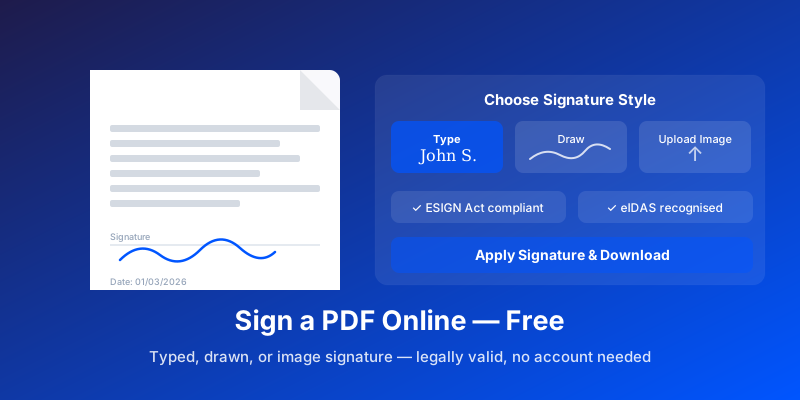
Sign a PDF Online Free: Digital Signatures Made Simple
Add a typed, drawn, or image signature to any PDF in seconds — no account needed. Covers legal validity and mobile signing.
Picture a simple scenario: your landlord emails you a lease, your bank sends over a loan agreement, or a client wants a signed NDA before a project kicks off. In each case, printing the document, signing it by hand, scanning it, and emailing it back is a genuine chore — one that requires a printer, a scanner, and a few minutes you probably don't have.
Signing a PDF online skips all of that. This guide covers how the process actually works, what your legal options are, and how to choose the right kind of signature for different situations.
Three Ways to Add a Signature to a PDF
Not every signature is the same, and the right approach depends on what you're signing and who will receive it.
1. Typed Signature
You type your name and choose a handwriting-style font. The result looks like a signature but is generated from text. This is the fastest option and works well for internal documents, low-stakes agreements, and situations where a quick confirmation is all that's needed.
2. Drawn Signature
You draw your signature directly on screen using a mouse, trackpad, or finger on a touchscreen. This captures something closer to your actual handwriting and is appropriate for a wider range of documents including contracts, approvals, and client-facing materials.
3. Uploaded Signature Image
You sign a piece of white paper, photograph or scan it, and upload the image. The tool removes the background and places it on the document. This is the closest match to a traditional wet ink signature and carries the most visual authority — useful for formal letters, legal agreements, and documents where appearance matters.
Signature Type Comparison
| Factor | Typed Signature | Drawn Signature | Uploaded Image |
|---|---|---|---|
| Time to create | 5 seconds | 15–30 seconds | 1–2 minutes (one-time setup) |
| Looks like handwriting | Similar (font-based) | Yes | Exact match |
| Works on desktop | Yes | Yes (mouse/trackpad) | Yes |
| Works on mobile | Yes | Yes (finger/stylus) | Yes |
| Reusable across docs | Yes (save font style) | Yes (save image) | Yes (save image) |
| Legal validity | Full | Full | Full |
| Best for | Internal docs, quick approvals | Client-facing agreements | Formal legal contracts, deeds |
| Closest to wet-ink | No | Partial | Yes |
For everyday business — contracts, NDAs, service agreements — any of these three methods is legally valid in most jurisdictions. The uploaded image option is worth the extra setup time if you sign frequently or need the document to look as formal as a paper original.
Are Electronic Signatures Legally Valid?
Yes, in most countries and for most document types. The two key frameworks:
United States — ESIGN Act (2000): Electronic signatures have the same legal standing as handwritten signatures on any contract or agreement where both parties consent to doing business electronically. There are exceptions for certain estate documents, court orders, and utility notices, but these are narrow.
European Union — eIDAS Regulation: Establishes three tiers — Simple Electronic Signature (SES), Advanced Electronic Signature (AES), and Qualified Electronic Signature (QES). For everyday business contracts, SES is sufficient. High-stakes transactions may require AES or QES with additional identity verification.
United Kingdom (post-Brexit): The Electronic Communications Act and subsequent guidance maintain that electronic signatures are valid for most commercial and personal agreements.
India: The Information Technology Act recognises digital signatures using certificate-based authentication.
The practical takeaway: for the vast majority of business contracts, service agreements, and internal approvals, an electronic signature created through a reputable tool is fully enforceable.
What electronic signatures are generally not appropriate for: wills and testamentary documents in some jurisdictions, real estate deed transfers in certain states, and a small number of government-specific forms that still require wet ink or notarisation. If you're uncertain, check with a lawyer in your jurisdiction.
How to Sign a PDF with AllPDFMagic
AllPDFMagic Sign PDF handles all three signature types — typed, drawn, and uploaded image — directly in your browser. No account required and your document is never stored permanently.
Step 1: Open the tool Navigate to the Sign PDF tool and upload your document by dragging it onto the page or clicking to browse your files.
Step 2: Choose your signature type Three tabs appear: Type, Draw, and Upload. Select the one that fits your situation.
- Type: Enter your name, choose a style from the font options provided.
- Draw: Use your mouse, trackpad, or finger to draw your signature in the box. A clear background makes it easy to redo if needed.
- Upload: Take a photo of your handwritten signature against a white background and upload it. The tool removes the white background automatically.
Step 3: Place the signature Click or tap anywhere on the document page to place your signature. Drag to reposition it, and resize using the corner handles.
Step 4: Add date or initials (optional) If the document has multiple signature fields, you can add initials or a typed date to separate positions.
Step 5: Download Click Sign and Download. The signature is embedded permanently into the PDF. The resulting file is indistinguishable from one signed in Adobe Acrobat.
Signing on Mobile
The drawn signature option works particularly well on phones and tablets because you can sign with your finger naturally. Open your browser, go to allpdfmagic.com/tools/sign, upload the PDF from your Files app, and draw your signature with your finger. Download the signed PDF directly to your device.
Multiple Signatories
If a document needs signatures from several people:
- The first person signs and downloads the signed PDF.
- That signed PDF is sent to the second person, who opens it in the Sign PDF tool and adds their own signature.
- This continues until all parties have signed.
Each signature is embedded at download time, so subsequent signers cannot accidentally alter earlier signatures. For formal multi-party agreements requiring audit trails and timestamping, a dedicated e-signature platform with workflow features (DocuSign, Adobe Sign) provides a more robust chain of evidence — though at considerably higher cost.
Protecting the Signed Document
Once a contract or agreement is signed, you typically don't want anyone modifying it. Two steps help:
- Password protect the PDF so it cannot be edited or printed without authorisation.
- Keep a copy of the signed document in cloud storage (Google Drive, Dropbox) as a backup.
Frequently Asked Questions
Can a signature added online be verified?
A signature placed via image, drawing, or text is visual confirmation but doesn't carry a cryptographic certificate. For documents that may face legal challenge, a certificate-based digital signature (which embeds verifiable identity data into the file) provides stronger proof. Most day-to-day business agreements don't require this level of verification.
What if I need to sign a form field, not just a blank area?
If the PDF has a designated signature field (an interactive form element), clicking it in AllPDFMagic activates that field for signing. The signature is then confined to the field dimensions by default, though you can resize to fit.
Is my document private?
AllPDFMagic processes your file in the browser and automatically deletes it from the server after your session ends. The document is not stored, shared, or used in any way beyond delivering the signed output to you.
Does adding a signature change the rest of the document?
No. The signature is overlaid as a separate element. All existing text, formatting, tables, and images remain exactly as they were.
Can I sign a scanned PDF?
Yes. Scanned PDFs are essentially images embedded in a PDF container. The signature tool places your signature on top of the page image just as it would on a native PDF. If the scanned document has interactive form fields, those may not be editable — use the flat form annotation feature instead.
You might also find these guides helpful:
- Best Free PDF Reader Online — view signed PDFs in your browser
- OCR PDF: Extract Text from Scanned Documents — make scanned PDFs searchable
- How to Compare Two PDF Documents and Track Changes — spot differences between document versions
- How to Organize PDF Pages — merge, split, and manage PDF pages
Sign your first document online with AllPDFMagic Sign PDF — free, fast, and legally valid.
Frequently Asked Questions
A signature placed via image, drawing, or text is visual confirmation but doesn't carry a cryptographic certificate. For documents that may face legal challenge, a certificate-based digital signature (which embeds verifiable identity data into the file) provides stronger proof. Most day-to-day business agreements don't require this level of verification.
If the PDF has a designated signature field (an interactive form element), clicking it in AllPDFMagic activates that field for signing. The signature is then confined to the field dimensions by default, though you can resize to fit.
AllPDFMagic processes your file in the browser and automatically deletes it from the server after your session ends. The document is not stored, shared, or used in any way beyond delivering the signed output to you.
No. The signature is overlaid as a separate element. All existing text, formatting, tables, and images remain exactly as they were.
Yes. Scanned PDFs are essentially images embedded in a PDF container. The signature tool places your signature on top of the page image just as it would on a native PDF. If the scanned document has interactive form fields, those may not be editable — use the flat form annotation feature instead. You might also find these guides helpful: - Best Free PDF Reader Online — view signed PDFs in your browser - OCR PDF: Extract Text from Scanned Documents — make scanned PDFs searchable - How to Compare Two PDF Documents and Track Changes — spot differences between document versions - How to Organize PDF Pages — merge, split, and manage PDF pages Sign your first document online with AllPDFMagic Sign PDF — free, fast, and legally valid.