How to Split a PDF: 5 Easy Methods for Any Device
Split a PDF into separate files, extract page ranges, or divide by fixed intervals — free, online, no software needed. Covers Windows, Mac, iPhone, and Android.
Large PDF files create practical problems: inboxes reject attachments over 25MB, colleagues only need one chapter of a 200-page report, and sharing a confidential contract that contains unrelated appendices is a security concern. Splitting a PDF into smaller, focused files solves all of these.
This guide covers the most reliable ways to split a PDF, which method works best in different situations, and a few things to watch for.
When Splitting Makes Sense
Sending a specific section by email: Rather than compressing an entire report and hoping it fits within your email provider's attachment limit, extract the relevant chapters and send a much smaller file.
Distributing only the relevant pages to each recipient: A vendor contract might include confidential pricing schedules on pages 30–40 that you don't need to share with external reviewers. Split those pages out before sharing.
Creating individual documents from a batch scan: Office scanners often produce a single PDF with multiple separate documents. Splitting by document boundaries gives each recipient only their own records.
Reducing file size without compression: Sometimes the easiest way to get a PDF under an arbitrary size limit is to split it in half rather than degrade image quality through compression.
Breaking a book or manual into chapters: Readers often want specific chapters rather than a complete document. Splitting by chapter makes the content more navigable and easier to share.
Method 1: AllPDFMagic Split Tool (Online, Free)
AllPDFMagic Split PDF handles all common splitting scenarios without software installation or account registration.
To split into individual pages:
- Open the Split PDF tool
- Upload your PDF
- Choose "Extract all pages as separate PDFs"
- Download the zip file containing one PDF per page
To extract a specific page range:
- Upload your PDF
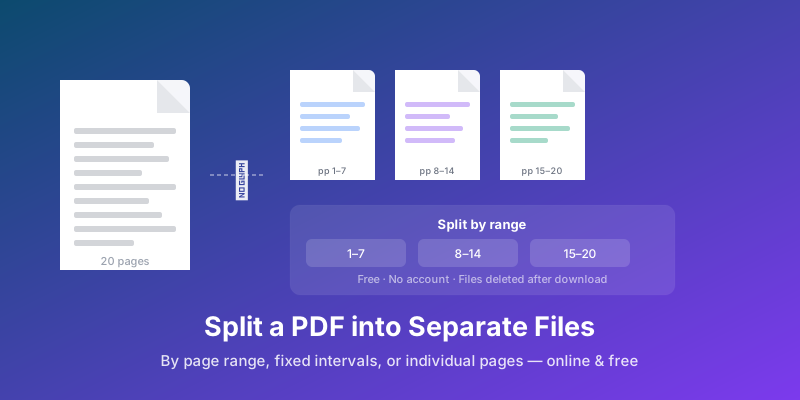
- Choose "Split by range" and enter the page numbers (e.g., 1–10, 11–25)
- Each range becomes a separate downloaded PDF
To split after every N pages: This is useful for batch-scanned documents. Enter the fixed interval (e.g., every 3 pages) and the tool creates evenly sized chunks automatically.
The whole process takes under a minute for documents up to 100MB.
Method 2: Google Chrome's Print to PDF
Chrome's built-in print feature lets you extract a page range without any external tool.
- Open the PDF in Chrome (drag the file onto a Chrome window)
- Press Ctrl+P (Windows/Linux) or Cmd+P (Mac)
- Set the destination to Save as PDF
- Under Pages, enter the page range you want (e.g., 5–12)
- Click Save and choose a filename
This method is quick for single ranges but doesn't support splitting into multiple separate files in one operation. You'd need to repeat the process for each section.
Method 3: macOS Preview
Preview handles basic splitting cleanly without any additional software.
- Open the PDF in Preview
- Show the thumbnail sidebar: View → Thumbnails
- Select the pages you want in the split-off file (hold Cmd to select non-consecutive pages, or Shift for a range)
- Drag the selected thumbnails to the Desktop
macOS creates a new PDF containing only those pages. The original file remains untouched.
To split into multiple files, repeat the drag operation for each group of pages.
Method 4: Command Line (pdftk / qpdf)
For developers or power users who need to automate splitting across many files:
Using pdftk: You might also need to extract specific pages from a PDF or merge PDF files.
pdftk input.pdf cat 1-10 output part1.pdf
pdftk input.pdf cat 11-20 output part2.pdf
Using qpdf:
qpdf input.pdf --pages . 1-10 -- part1.pdf
qpdf input.pdf --pages . 11-20 -- part2.pdf
Both tools are free and available through package managers (Homebrew on Mac, apt on Linux, installers on Windows).
Split Method Comparison
| Method | Best For | Max File Size | Batch Support | Cost | Platform |
|---|---|---|---|---|---|
| AllPDFMagic (online) | Quick, occasional splits | 100 MB | Limited | Free | Any browser |
| Chrome Print to PDF | Single range extraction | No limit | No | Free | Desktop |
| macOS Preview | Mac users, drag-and-drop | No practical limit | Manual | Free | Mac only |
| pdftk / qpdf (CLI) | Automation, bulk files | No limit | Yes (scripting) | Free | Windows/Mac/Linux |
| Adobe Acrobat Pro | Enterprise, complex splits | No limit | Yes | $19.99+/mo | Desktop + Cloud |
Recommendation: For most one-off needs, AllPDFMagic is the fastest path — no installation, no account, browser-based. For developers automating splits across hundreds of files, pdftk or qpdf with a shell script is the right tool. For Mac users already in Preview, the drag-to-desktop method is the simplest.
What Stays Intact After Splitting
When you split a PDF correctly, every page in the output retains:
- Original image quality (no re-compression)
- Embedded fonts
- Hyperlinks within the extracted pages
- Form fields (interactive elements remain interactive)
- Searchable text
What typically does not carry over: bookmarks or outlines that reference pages outside the extracted range, and annotations that link to other sections of the original document.
How to Split a Password-Protected PDF
If the PDF has a user password, you'll need to enter it before splitting. Most tools, including AllPDFMagic, prompt for the password when you upload the file. An owner password (which restricts editing but not opening) usually doesn't interfere with splitting in most online tools.
If you've lost the password, you'll need to unlock the PDF first.
Handling Very Large PDFs
For files over 50MB, an online tool may be slower than a desktop option like pdftk or Adobe Acrobat. If you're regularly splitting large documents, installing a local tool is worth the one-time setup effort. For occasional needs, most online tools handle files up to 100MB without issues.
Splitting vs. Extracting Pages
These two operations often get confused:
- Split: Divides the original PDF into multiple new PDFs based on ranges you define
- Extract: Pulls specific pages out into a new PDF, leaving the original untouched
The distinction matters when you want to keep the original intact (use Extract) versus when you're replacing the original with smaller pieces (use Split). AllPDFMagic Extract Pages handles the extraction scenario.
Frequently Asked Questions
Will splitting reduce image quality?
No. Splitting is a structural operation — pages are moved into new containers without re-encoding any content. Images, fonts, and vector graphics remain at their original resolution.
Can I split a scanned PDF?
Yes. Scanned PDFs are treated the same as native PDFs for splitting purposes. Each page is a self-contained image, and splitting simply places each page image into its own file.
Is there a page limit for splitting?
AllPDFMagic supports PDFs up to 100MB, which typically covers documents with hundreds of pages. For larger files, command-line tools like pdftk have no practical limit.
Can I merge the split files back together later?
Absolutely. Use AllPDFMagic Merge PDF to recombine PDF files in any order.
Does splitting a PDF change metadata like author or creation date?
Some tools preserve the original metadata in each split file; others reset it. AllPDFMagic preserves the title and author metadata from the source document.
You might also find these guides helpful:
- Best Free PDF Reader Online — view your split PDFs in-browser
- OCR PDF: Extract Text from Scanned Documents — make scanned documents searchable
- How to Sign a PDF Online Free — add signatures to individual documents
Frequently Asked Questions
No. Splitting is a structural operation — pages are moved into new containers without re-encoding any content. Images, fonts, and vector graphics remain at their original resolution.
Yes. Scanned PDFs are treated the same as native PDFs for splitting purposes. Each page is a self-contained image, and splitting simply places each page image into its own file.
AllPDFMagic supports PDFs up to 100MB, which typically covers documents with hundreds of pages. For larger files, command-line tools like pdftk have no practical limit.
Absolutely. Use AllPDFMagic Merge PDF to recombine PDF files in any order.
Some tools preserve the original metadata in each split file; others reset it. AllPDFMagic preserves the title and author metadata from the source document. You might also find these guides helpful: - Best Free PDF Reader Online — view your split PDFs in-browser - OCR PDF: Extract Text from Scanned Documents — make scanned documents searchable - How to Sign a PDF Online Free — add signatures to individual documents