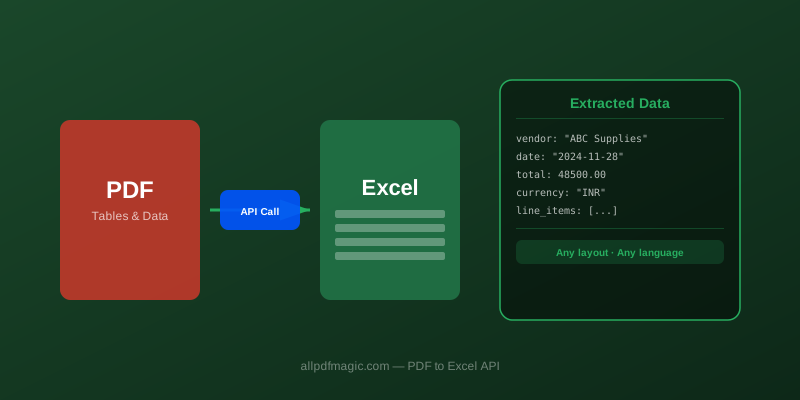
PDF to Excel API: Extract Structured Tables from PDFs Programmatically
Convert PDFs to Excel/CSV programmatically with Python and Node.js. Handles complex layouts, merged cells, and scanned PDFs.
PDF to Excel API: Extract Structured Tables from PDFs Programmatically
Pulling table data out of PDFs is one of the most common document automation tasks — and one of the most painful when done wrong. Libraries like tabula-py and camelot work well on simple PDFs but fail on PDFs generated by scanning, complex multi-column layouts, or merged cells.
A dedicated PDF-to-Excel API solves this cleanly: send the file, get back structured spreadsheet data. This guide shows how to do it with the AllPDFMagic API using Python, Node.js, and plain cURL.
Why use an API instead of a library?
| Approach | Pros | Cons |
|---|---|---|
| tabula-py | Free, local processing | Requires Java, breaks on complex layouts |
| camelot | Good on simple tables | Fails on scanned PDFs, slow on large files |
| pdfplumber | Good text extraction | Not designed for tables with merged cells |
| AllPDFMagic API | Handles any layout, returns clean JSON or XLSX | Requires internet, usage limits on free tier |
For production document pipelines, an API is almost always the right call — no dependency management, no version hell, no "works on my machine."
Quick start with cURL
curl -X POST https://www.allpdfmagic.com/api/v1/convert/pdf-to-excel \
  -H "Authorization: Bearer YOUR_API_KEY" \
  -F "file=@financial_report.pdf" \
  -o output.xlsx
That's it. The response is a valid .xlsx file with one worksheet per page of tables found.
Python: batch process a folder of PDFs
import requests
import os
from pathlib import Path

API_KEY = "apm_live_your_key_here"
BASE_URL = "https://www.allpdfmagic.com/api/v1"

session = requests.Session()
session.headers["Authorization"] = f"Bearer {API_KEY}"

def pdf_to_excel(pdf_path: str, output_path: str) -> None:
    """Convert a PDF's tables to an Excel file."""
    with open(pdf_path, "rb") as f:
        response = session.post(
            f"{BASE_URL}/convert/pdf-to-excel",
            files={"file": (Path(pdf_path).name, f, "application/pdf")},
            timeout=120,
        )
    response.raise_for_status()
    with open(output_path, "wb") as out:
        out.write(response.content)
    size_kb = os.path.getsize(output_path) / 1024
    print(f"  → {output_path} ({size_kb:.1f} KB)")

def batch_convert(input_folder: str, output_folder: str) -> None:
    os.makedirs(output_folder, exist_ok=True)
    pdf_files = list(Path(input_folder).glob("*.pdf"))
    print(f"Converting {len(pdf_files)} PDF files...")

    for pdf_path in pdf_files:
        output_path = Path(output_folder) / pdf_path.with_suffix(".xlsx").name
        try:
            pdf_to_excel(str(pdf_path), str(output_path))
        except requests.HTTPError as e:
            print(f"  ✗ {pdf_path.name}: {e}")

batch_convert("./financial_reports", "./excel_output")
Node.js: stream a PDF and save the Excel result
const fs = require('fs');
const FormData = require('form-data');

async function pdfToExcel(inputPath, outputPath) {
  const form = new FormData();
  form.append('file', fs.createReadStream(inputPath), {
    filename: 'document.pdf',
    contentType: 'application/pdf',
  });

  const response = await fetch('https://www.allpdfmagic.com/api/v1/convert/pdf-to-excel', {
    method: 'POST',
    headers: {
      'Authorization': `Bearer ${process.env.ALLPDFMAGIC_API_KEY}`,
      ...form.getHeaders(),
    },
    body: form,
  });

  if (!response.ok) {
    const err = await response.json().catch(() => ({}));
    throw new Error(`API error ${response.status}: ${err.error || 'unknown'}`);
  }

  const buffer = await response.arrayBuffer();
  fs.writeFileSync(outputPath, Buffer.from(buffer));
  console.log(`Saved ${outputPath} (${(buffer.byteLength / 1024).toFixed(1)} KB)`);
}

pdfToExcel('quarterly_report.pdf', 'quarterly_report.xlsx');
PDF to CSV (for database ingestion)
If you want raw CSV instead of Excel — easier for database imports or pandas DataFrames:
def pdf_to_csv(pdf_path: str, output_path: str) -> None:
    with open(pdf_path, "rb") as f:
        response = session.post(
            f"{BASE_URL}/convert/pdf-to-csv",
            files={"file": (Path(pdf_path).name, f, "application/pdf")},
            timeout=120,
        )
    response.raise_for_status()
    with open(output_path, "w", encoding="utf-8") as out:
        out.write(response.text)

pdf_to_csv("vendor_statement.pdf", "vendor_statement.csv")

# Load directly into pandas
import pandas as pd
df = pd.read_csv("vendor_statement.csv")
print(df.head())
Using extracted data for reconciliation
A common real-world use case: extracting bank statement tables and reconciling with internal records:
import pandas as pd

def reconcile_bank_statement(statement_pdf: str, ledger_csv: str) -> pd.DataFrame:
    """Extract transactions from a PDF bank statement and cross-check with the ledger."""
    # 1. Convert PDF to CSV
    pdf_to_csv(statement_pdf, "/tmp/statement.csv")

    # 2. Load both datasets
    bank_df = pd.read_csv("/tmp/statement.csv")
    ledger_df = pd.read_csv(ledger_csv)

    # 3. Normalize column names (banks use different headers)
    bank_df.columns = [c.lower().strip() for c in bank_df.columns]
    bank_df = bank_df.rename(columns={"credit": "amount", "debit": "amount", "narration": "description"})

    # 4. Find transactions in bank but not in ledger
    merged = bank_df.merge(ledger_df, on=["date", "amount"], how="left", indicator=True)
    unmatched = merged[merged["_merge"] == "left_only"]
    print(f"Found {len(unmatched)} unreconciled transactions")
    return unmatched

unmatched = reconcile_bank_statement("oct_bank_statement.pdf", "ledger_oct.csv")
unmatched.to_excel("unreconciled.xlsx", index=False)
Tips for best results
Choose the right endpoint:
- Tables with clear borders →
/convert/pdf-to-excel(layout-aware extraction) - Text-heavy with inline tables →
/convert/pdf-to-csv(faster, plainer) - Scanned PDF → run
/ai/ocrfirst to get a searchable PDF, then convert
Handle multi-page PDFs: The API returns one sheet per page of tables found. Use openpyxl to merge them:
import openpyxl

def merge_sheets(xlsx_path: str, merged_path: str) -> None:
    wb = openpyxl.load_workbook(xlsx_path)
    merged = openpyxl.Workbook()
    ws = merged.active
    ws.title = "All Tables"
    for sheet in wb.worksheets:
        for row in sheet.iter_rows(values_only=True):
            ws.append(row)
    merged.save(merged_path)
Pricing and quota
| Plan | Calls/month | Cost |
|---|---|---|
| Starter | 500 | Free |
| Indie | 2,000 | $9/mo |
| Developer | 10,000 | $29/mo |
| Business | 100,000 | $99/mo |
For a batch job processing 50 PDFs/day (~1,500/month), the Indie plan covers it comfortably. Get your key at allpdfmagic.com/dashboard/api.
Frequently Asked Questions
The AllPDFMagic PDF-to-Excel API works with any PDF layout including merged cells, multi-column tables, and scanned documents. It returns a clean .xlsx file with one sheet per page of tables found. The free Starter tier gives 500 conversions per month.
Yes — run /ai/ocr first to create a searchable PDF with a text layer, then pass the result to /convert/pdf-to-excel. This two-step approach handles receipts, fax scans, and camera photos of documents.
Use the /convert/pdf-to-csv endpoint. The response is plain text CSV, ready for pandas.read_csv() or direct database import. No extra libraries needed.
pdf-to-excel preserves formatting, multiple tables per page on separate sheets, and merged cell awareness. pdf-to-csv is a flat text export — faster and simpler, ideal for single-table documents going into a database.