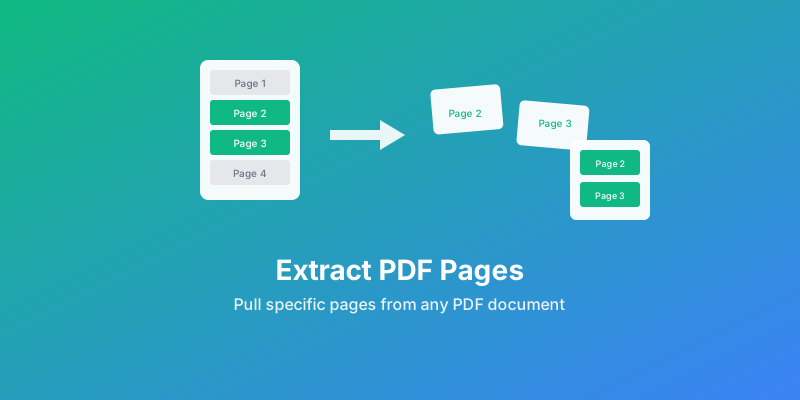
How to Extract Pages from PDF: Complete Guide (2026)
Need specific pages from a large PDF in 2026? Learn multiple methods to extract individual pages or page ranges from any PDF document for free.
When You Need to Extract PDF Pages
Learning how to extract pages from PDF documents is one of the most common tasks people face when working with digital files. Whether you are a student pulling a single chapter from a textbook, a lawyer isolating key contract clauses, or a project manager sharing just the relevant section of a 200-page report, extracting pages saves time and keeps communication focused.
Here are the most common scenarios where you need to extract pages from PDF files:
- Single page for reference: Pull out one page to share with a colleague or client without sending the entire document
- Creating excerpts: Extract a chapter, appendix, or specific section for review or republication
- Splitting documents: Break a large PDF into smaller, more manageable files for easier distribution
- Removing sensitive pages: Keep only non-confidential content before sharing externally
- Reorganizing content: Pull specific pages to rearrange them into a new document or presentation
- Submitting forms: Government agencies and universities often require only certain pages from a larger packet
- Archiving: Save one page from PDF online to store just the receipt, invoice, or certificate you actually need
No matter the reason, being able to pull specific pages from PDF files quickly and accurately is an essential skill in any modern workflow.
Method 1: AllPDFMagic Online Tool (Fastest)
The quickest way to extract pages from any PDF is to use a dedicated online tool. AllPDFMagic lets you extract single page from PDF free with no signup, no watermarks, and no software to install. It works entirely in your browser, which means you can separate PDF pages free online from any device, including Windows, Mac, Linux, Chromebook, and even mobile phones.
Step-by-Step Instructions
- Go to AllPDFMagic Extract Pages
- Upload your PDF by clicking the upload area or dragging and dropping the file
- Wait for the page thumbnails to load so you can visually confirm each page
- Select pages to extract by clicking on thumbnails or entering page numbers manually (e.g., 1, 3, 7-12)
- Click the Extract button
- Download your new PDF containing only the selected pages
The entire process takes seconds, even for large files. Because AllPDFMagic processes everything in the browser, your document never leaves your computer, making it a safe and private option.
Page Selection Options
AllPDFMagic supports flexible page selection syntax so you can pull specific pages from PDF documents in any combination:
- Single pages: 1, 5, 12
- Page ranges: 1-5, 10-15
- Mixed combinations: 1, 3, 5-10, 15, 20-25
- All odd or even pages: Use the dedicated toggle buttons
This flexibility makes it easy to extract non-consecutive pages in a single operation, which many desktop applications struggle with.
How to Extract Pages from PDF Without Acrobat
Adobe Acrobat Pro is powerful, but it costs over $25 per month as of 2026. The good news is you absolutely do not need it. Here is how to extract pages from PDF without Acrobat using completely free methods:
Option 1: AllPDFMagic (Browser-Based) Visit AllPDFMagic Extract Pages, upload your file, pick pages, and download. No account needed, no cost, and no software installation.
Option 2: Google Chrome Built-In Print
- Open the PDF in Google Chrome
- Press Ctrl+P (Windows/Linux) or Cmd+P (Mac)
- Change the destination to "Save as PDF"
- Under "Pages," enter the specific page numbers you want (e.g., 3-5, 8)
- Click Save
Option 3: Command-Line Tools For advanced users, tools like pdftk or qpdf can extract pages via terminal commands. For example:
pdftk input.pdf cat 1 3 5-10 output extracted.pdf
This command pulls pages 1, 3, and 5 through 10 from input.pdf and saves them into a new file.
Option 4: LibreOffice Draw Open the PDF in LibreOffice Draw, delete unwanted pages, and export to PDF. This is free and works on Windows, Mac, and Linux.
| Method | Cost | Internet Required | Batch Support |
|---|---|---|---|
| AllPDFMagic | Free | Yes | Yes |
| Chrome Print | Free | No | No |
| pdftk (CLI) | Free | No | Yes |
| LibreOffice | Free | No | Limited |
How to Extract Pages from PDF on Mac
Mac users have a built-in advantage: the Preview application handles basic PDF tasks natively. Here is how to extract PDF pages on Mac using Preview and other methods.
Using Preview (Built-In)
- Open your PDF in Preview (right-click the file > Open With > Preview)
- Go to View > Thumbnails to display the page sidebar
- Click on the pages you want to extract. Hold Cmd and click to select multiple non-consecutive pages, or hold Shift and click to select a range
- Drag the selected thumbnails to your Desktop or any Finder folder
- A new PDF is created automatically containing only those pages
Preview is perfect for quick single-page extractions, but it can be clunky when you need to pull specific pages from PDF documents with dozens or hundreds of pages.
Using AllPDFMagic on Mac
For a more visual and intuitive experience on Mac, open Safari or Chrome and navigate to AllPDFMagic Extract Pages. The web-based interface gives you larger thumbnails, flexible page number input, and handles large files more smoothly than Preview.
How to Extract Pages from PDF on iPhone and Android
Mobile devices are increasingly where people read and manage PDFs. Fortunately, you can extract pages from PDF files directly on your phone or tablet.
iPhone and iPad
- Open Safari and go to AllPDFMagic Extract Pages
- Tap the upload area and select your PDF from Files, iCloud Drive, or another app
- Select the pages you want
- Tap Extract and download the result
Alternatively, Apple's built-in Files app (iOS 15+) supports basic PDF markup but does not offer page extraction natively, so a browser-based tool is your best bet.
Android
- Open Chrome and navigate to AllPDFMagic Extract Pages
- Upload your PDF from device storage or Google Drive
- Select pages, extract, and save the resulting file
On Android, you can also use Google Drive's built-in PDF viewer combined with the print-to-PDF trick: open the PDF, tap Print, select "Save as PDF," and enter the desired page range.
Extract Pages from a Password-Protected PDF
Password-protected PDFs add a layer of complexity. There are two types of PDF protection:
- User password (open password): Prevents anyone from opening the file without the password
- Owner password (permissions password): Restricts editing, printing, and copying but still allows viewing
If the PDF has only an owner/permissions password, many tools (including browser-based ones) can still extract pages because the content is viewable. If the PDF requires a password to open, you must enter the correct password first.
Steps to extract from a protected PDF:
- Use AllPDFMagic Unlock to remove permission restrictions (if you have authorization to do so)
- Download the unlocked version
- Open the unlocked PDF in AllPDFMagic Extract Pages
- Select and extract your desired pages
Always ensure you have legal authorization to modify or extract pages from protected documents.
How to Extract Non-Consecutive Pages
One of the most common frustrations is needing pages that are scattered throughout a document, for example, pages 2, 7, 15, and 31-33 from a 50-page report. Many basic tools only support contiguous ranges, but AllPDFMagic handles non-consecutive pages seamlessly.
Techniques for Non-Consecutive Extraction
Comma-separated entry: Simply type the page numbers separated by commas in the page selector field. For example: 2, 7, 15, 31-33.
Click-to-select thumbnails: In AllPDFMagic, click each page thumbnail individually. Selected pages are highlighted, and you can deselect any page by clicking it again.
Multiple extractions then merge: If your tool only supports ranges, extract each range separately and then use AllPDFMagic Merge to combine them into a single PDF.
This approach is especially useful when you need to pull specific pages from PDF documents for a presentation or portfolio where the pages are not sequential.
Method 2: Adobe Acrobat
Using Acrobat Pro
Adobe Acrobat Pro remains the industry standard for PDF editing, though its cost puts it out of reach for many casual users. If you do have access:
- Open the PDF in Adobe Acrobat Pro
- Go to Tools > Organize Pages
- Select the pages you want to extract by clicking their thumbnails (hold Ctrl or Cmd for multiple)
- Right-click and choose Extract Pages
- In the dialog box, choose whether to delete the extracted pages from the original document
- Save the extracted document to your preferred location
Acrobat Pro offers additional options like extracting each page as a separate file, which is useful for batch processing. However, for most users who simply want to extract pages from PDF documents without a subscription, free alternatives deliver identical results.
Extracting Pages vs Splitting vs Deleting: Which Should You Use?
These three operations sound similar but serve different purposes. Choosing the right one saves you time and avoids unnecessary steps.
| Feature | Extract Pages | Split PDF | Delete Pages |
|---|---|---|---|
| What it does | Creates a new PDF with only selected pages | Divides one PDF into multiple separate PDFs | Removes unwanted pages from the original |
| Original file | Unchanged | Unchanged | Modified (or saved as new) |
| Best for | Pulling specific pages you need | Breaking a document into chapters or sections | Removing confidential or irrelevant pages |
| Output | One new PDF | Multiple new PDFs | One modified PDF |
| AllPDFMagic tool | Extract Pages | Split PDF | Delete Pages |
When to extract: You need pages 5, 12, and 18 from a 30-page report to share with a client.
When to split: You have a 100-page manual and want to create separate PDFs for each of the 10 chapters.
When to delete: You have a 20-page document and need to remove pages 8 and 9 because they contain internal-only data.
You can also combine operations. For example, extract the pages you need, then use Rotate to fix any upside-down scans, Compress to reduce file size, and Number Pages to add fresh pagination.
Real-World Examples: When You Need to Extract PDF Pages
Example 1: Submitting a University Application
You have a 15-page transcript PDF but the application portal only accepts a single-page upload for your most recent semester.
- Open AllPDFMagic Extract Pages
- Upload the full transcript
- Select page 15 (the most recent semester)
- Extract and download
- Upload the single-page PDF to the application portal
Example 2: Sharing a Contract Clause with Your Lawyer
Your real estate contract is 40 pages, but you only need your lawyer to review the inspection contingency on pages 12-14.
- Navigate to AllPDFMagic Extract Pages
- Upload the contract PDF
- Enter pages 12-14
- Extract and email the resulting 3-page PDF to your lawyer
Example 3: Creating a Portfolio
You have design work spread across multiple project PDFs. You want page 3 from Project A, pages 1-2 from Project B, and page 7 from Project C.
- Extract page 3 from Project A using Extract Pages
- Extract pages 1-2 from Project B
- Extract page 7 from Project C
- Use AllPDFMagic Merge to combine all extracted pages into one cohesive portfolio PDF
Example 4: Saving a Receipt from a Bank Statement
Your 8-page bank statement contains one transaction receipt on page 5 that you need for expense reimbursement. Save one page from PDF online using AllPDFMagic, and you have a clean, single-page receipt ready to submit.
How to Extract Pages and Merge Into a New Document
Extracting pages is often just the first step. In many workflows, you need to combine pages from multiple PDFs into a single new document. AllPDFMagic makes this seamless with its Merge tool.
Workflow:
- Extract the pages you need from each source PDF using Extract Pages
- Open AllPDFMagic Merge
- Upload all extracted PDFs in the order you want them
- Rearrange if needed by dragging and dropping
- Click Merge and download the combined document
This is the most reliable way to build custom documents from multiple sources, such as assembling board meeting packets, grant applications, or client proposals.
Tips for Page Extraction
Before Extracting
- Know your page numbers: Scroll through the PDF to identify exactly which pages you need. The page numbers shown in the PDF viewer may differ from the printed page numbers in the document itself
- Note the total page count: Verify how many pages the document contains before extraction to avoid missing important content
- Check for cross-page elements: Tables, images, or diagrams that span two pages may look incomplete if you only extract one of the pages
- Review internal links: Hyperlinks that point to other pages within the document may not function after extraction
After Extracting
- Verify content: Open the extracted PDF and confirm it contains the correct pages in the right order
- Rename the file: Give your extracted document a meaningful name rather than keeping the default
- Compress if needed: Large extracted pages (especially those with images) may benefit from compression to reduce file size before sharing
- Add page numbers: If the extracted pages will be used as a standalone document, consider adding fresh page numbers with Number Pages
Frequently Asked Questions
Can I extract pages from a PDF for free?
Yes. AllPDFMagic lets you extract single page from PDF free with no limits on the number of pages or files you process. There is no account required and no watermark added. You can also separate PDF pages free online using the Chrome print-to-PDF method, though it is less flexible for non-consecutive pages.
How do I save just one page of a PDF?
The simplest way to save one page from PDF online is to use AllPDFMagic Extract Pages. Upload the PDF, click the thumbnail of the page you want (or type the page number), click Extract, and download the single-page PDF. On Mac, you can also drag a single thumbnail from Preview to your Desktop.
Does extracting pages reduce PDF quality?
No. When you extract pages from PDF files, the content is copied at its original resolution and quality. Text remains searchable, images retain their original resolution, and vector graphics stay crisp. No re-encoding or re-compression occurs during extraction.
Can I extract pages from a scanned PDF?
Yes. Scanned PDFs are simply images embedded in a PDF container. Extraction works identically to text-based PDFs. The scanned images are copied to the new file at their original quality. If you need to make the text searchable after extraction, you can run OCR on the extracted pages.
How to extract pages from PDF on Chromebook?
Chromebooks run ChromeOS, which supports web-based tools perfectly. Open Chrome, go to AllPDFMagic Extract Pages, and follow the standard upload-select-extract process. You can also use Chrome's built-in print dialog (Ctrl+P > Save as PDF) to extract a range of pages. AllPDFMagic is one of the easiest ways to separate PDF pages free online from a Chromebook.
Can I extract pages and keep bookmarks?
Bookmarks (also called an outline or table of contents) are typically not preserved during extraction because they reference the original document structure. If you need bookmarks in the extracted document, you will need to recreate them using a PDF editor after extraction. However, the page content itself, including all text, images, and formatting, is fully preserved.
How to extract even or odd pages from a PDF?
This is useful for double-sided printing or separating front and back scans. In AllPDFMagic, you can select all even or all odd pages using the dedicated toggle buttons. Alternatively, you can manually enter the page numbers: for odd pages from a 10-page document, type 1, 3, 5, 7, 9. For even pages, type 2, 4, 6, 8, 10.
Is it safe to extract PDF pages online?
When using a reputable tool like AllPDFMagic, yes. AllPDFMagic processes your PDF entirely within your browser using client-side technology, which means your file is never uploaded to a remote server. Your document stays on your device throughout the entire extraction process. Always verify that any online tool you use has a clear privacy policy and uses HTTPS encryption.
Online Tool Comparison
If you are evaluating which service to use to extract pages from PDF documents, here is a detailed comparison:
| Feature | AllPDFMagic | SmallPDF | ILovePDF | Adobe Online |
|---|---|---|---|---|
| Free extractions | Unlimited | 2/day | Limited | Limited |
| Max file size | 100 MB | 5 GB | 200 MB | 100 MB |
| Account required | No | Yes (free tier) | No | Yes |
| Watermark on free | No | No | No | No |
| Non-consecutive pages | Yes | Yes | Yes | Yes |
| Client-side processing | Yes | No | No | No |
| Mobile friendly | Yes | Yes | Yes | Yes |
Conclusion
Knowing how to extract pages from PDF files is a fundamental skill that saves time across academic, professional, and personal workflows. Whether you need to extract single page from PDF free for a quick task, pull specific pages from PDF documents for a complex project, or separate PDF pages free online without installing any software, AllPDFMagic provides the fastest and most private way to get it done.
You do not need expensive software like Adobe Acrobat. You can extract PDF pages on Mac using Preview, on Chromebook using Chrome, on iPhone and Android using your mobile browser, and on any other device with an internet connection.
Ready to extract your pages? Try AllPDFMagic Extract Pages now. It is completely free, requires no signup, and works in seconds. After extracting, explore our other tools to split, merge, compress, rotate, or add page numbers to your PDFs.
Instead of extracting pages, you might want to merge PDFs into one file or split a PDF into multiple documents.
Frequently Asked Questions
Yes. AllPDFMagic lets you extract single page from PDF free with no limits on the number of pages or files you process. There is no account required and no watermark added. You can also separate PDF pages free online using the Chrome print-to-PDF method, though it is less flexible for non-consecutive pages.
The simplest way to save one page from PDF online is to use AllPDFMagic Extract Pages. Upload the PDF, click the thumbnail of the page you want (or type the page number), click Extract, and download the single-page PDF. On Mac, you can also drag a single thumbnail from Preview to your Desktop.
No. When you extract pages from PDF files, the content is copied at its original resolution and quality. Text remains searchable, images retain their original resolution, and vector graphics stay crisp. No re-encoding or re-compression occurs during extraction.
Yes. Scanned PDFs are simply images embedded in a PDF container. Extraction works identically to text-based PDFs. The scanned images are copied to the new file at their original quality. If you need to make the text searchable after extraction, you can run OCR on the extracted pages.
Chromebooks run ChromeOS, which supports web-based tools perfectly. Open Chrome, go to AllPDFMagic Extract Pages, and follow the standard upload-select-extract process. You can also use Chrome's built-in print dialog (Ctrl+P > Save as PDF) to extract a range of pages. AllPDFMagic is one of the easiest ways to separate PDF pages free online from a Chromebook.
Bookmarks (also called an outline or table of contents) are typically not preserved during extraction because they reference the original document structure. If you need bookmarks in the extracted document, you will need to recreate them using a PDF editor after extraction. However, the page content itself, including all text, images, and formatting, is fully preserved.
This is useful for double-sided printing or separating front and back scans. In AllPDFMagic, you can select all even or all odd pages using the dedicated toggle buttons. Alternatively, you can manually enter the page numbers: for odd pages from a 10-page document, type 1, 3, 5, 7, 9. For even pages, type 2, 4, 6, 8, 10.
When using a reputable tool like AllPDFMagic, yes. AllPDFMagic processes your PDF entirely within your browser using client-side technology, which means your file is never uploaded to a remote server. Your document stays on your device throughout the entire extraction process. Always verify that any online tool you use has a clear privacy policy and uses HTTPS encryption.