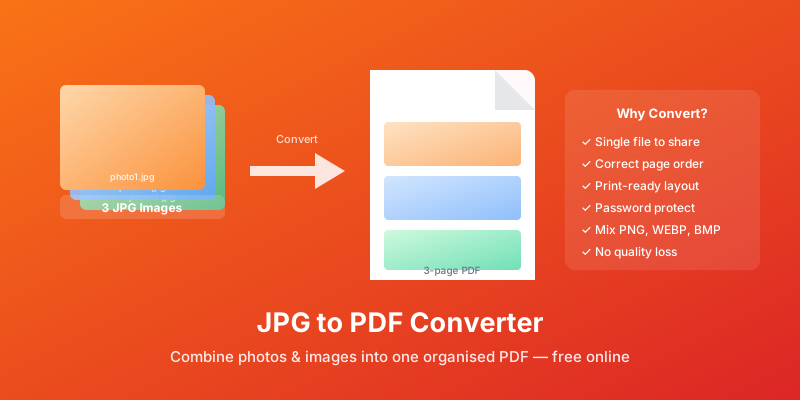
JPG to PDF: How to Convert and Combine Images into PDF
Turn one photo or dozens of images into a single PDF in seconds. Learn quality control, page sizing, mobile conversion, and how to handle mixed image formats.
Converting images to PDF is one of the most common document tasks people do — and one of the most straightforward when you know the right approach. Whether you're combining several product photos into a catalogue, sending a scanned receipt to your accountant, or bundling images from different sources into a single shareable file, a PDF is the natural destination.
This guide explains when and why to use JPG-to-PDF conversion, how to control quality and file size, and how to handle multi-image documents.
Why Convert Images to PDF?
A folder of JPG files is fine for your own storage, but it creates friction the moment you need to share, print, or archive. PDFs solve several problems at once:
Single-file sharing: Instead of attaching 12 separate photos to an email, one PDF keeps everything together and in the right order.
Consistent printing: PDF respects exact page dimensions, margins, and orientation. The recipient prints what you intended, regardless of their software.
Searchability (with OCR): A scanned document converted to PDF and processed with AllPDFMagic OCR becomes searchable text, not just an image. Useful for receipts, ID documents, and contracts.
Archiving: PDF is the accepted format for long-term document storage. A JPG of a birth certificate is useful; a PDF archive of that same document is more formally recognised.
Security: You can password-protect a PDF containing sensitive images — something you can't easily do with a folder of JPGs.
Converting a Single JPG to PDF
The quickest route for a single image:
- Go to AllPDFMagic JPG to PDF
- Drag your JPG onto the upload area (or click to browse)
- The tool places the image on a standard PDF page sized to match the image dimensions
- Click Convert, then download
The resulting PDF contains one page with your image at full quality. No watermarks, no account required.
Combining Multiple Images into One PDF
This is where the real value lies. If you have a series of photos — pages of a printed document, product images, meeting whiteboard photos — combining them into a single PDF keeps them ordered and easy to share.
- Open AllPDFMagic JPG to PDF
- Upload all your images at once (you can select multiple files)
- Drag to reorder them in the sequence you want
- Click Convert
All images appear as sequential pages in the output PDF. If you have images in PNG, WEBP, or BMP format, they can be combined in the same operation — the tool handles mixed image formats.
Controlling Image Quality and File Size
The relationship between JPG quality and PDF file size is direct: higher quality JPG = larger PDF. For most use cases, there's no need to change anything — the tool embeds the image as-is.
If your images are already high-resolution (above 300 DPI), the resulting PDF will be correspondingly large. Two approaches to manage this:
Resize images before conversion: If you don't need print quality, resizing JPGs to 1200–1800px wide before uploading produces PDFs that are perfectly clear on screen and in most print contexts, but significantly smaller in file size.
Compress after conversion: Convert first, then run the result through AllPDFMagic Compress PDF. The compressor downsamples images intelligently while preserving readable quality, often achieving 50–70% size reduction.
Page Size and Orientation
By default, the page in the output PDF is sized to match the image dimensions. A landscape photo produces a landscape page; a portrait scan produces a portrait page.
If you need a specific page size (A4, Letter) regardless of image dimensions, look for a page-size option in the conversion tool. This is useful when you need the PDF to print on standard paper without the printer rescaling the image.
Converting a Scanned Document
Scanning a paper document typically produces a JPG (or series of JPGs from a multi-page scan). Combining these into a PDF is exactly what the multi-image conversion handles. If you also need the text to be searchable, run the resulting PDF through OCR after conversion.
For ongoing scanning needs, AllPDFMagic Scanner lets you scan directly from your device's camera and produces a clean, enhanced PDF in one step.
Converting on Mobile
The conversion works directly in a mobile browser. Open Safari or Chrome, navigate to allpdfmagic.com/tools/jpg-to-pdf, and select images from your camera roll or Files app. This is handy for quick receipts, whiteboards, or documents you've photographed.
Common Formats Beyond JPG
The tool accepts all common image formats, not just JPG:
| Format | Best for |
|---|---|
| JPG/JPEG | Photographs, scanned documents |
| PNG | Screenshots, graphics with transparency |
| WEBP | Modern web images |
| BMP | Older Windows graphics |
| GIF | Simple graphics (converted without animation) |
| TIFF | High-resolution scans, archival images |
You can mix formats in a single batch conversion.
Frequently Asked Questions
Does converting a JPG to PDF reduce image quality?
Not if you use a tool that embeds the image without re-encoding. AllPDFMagic embeds your JPG at its original resolution and quality. The only reduction happens if you explicitly choose a compressed output option.
Can I convert photos taken on my phone directly?
Yes. Modern phone photos are JPGs (or HEICs that browsers convert on upload). Select them from your camera roll through the mobile browser and convert directly.
What's the maximum file size I can upload?
AllPDFMagic accepts images up to 100MB per file. For typical JPGs (1–5MB each), you can batch dozens of images in a single operation.
Can I control the order of pages in the output?
Yes. After uploading multiple images, the tool displays them as thumbnails. Drag them into the sequence you want before clicking Convert.
Is there a limit to how many images I can combine?
There is no fixed limit on the number of images. Practically, very large batches (100+ images at high resolution) may take longer to process. If you're combining a large number of images, consider splitting the job into two conversions and then merging the resulting PDFs.
Need to go the other way? Try our PDF to JPG converter to extract images from PDF files.
You might also find these guides helpful:
- How to Convert PDF to Excel Free — extract tables from PDFs into spreadsheets
- PDF to Word Conversion Best Practices — turn PDFs into editable documents
- How to Convert PNG to PDF Online Free — convert PNG images into PDF format
Frequently Asked Questions
Not if you use a tool that embeds the image without re-encoding. AllPDFMagic embeds your JPG at its original resolution and quality. The only reduction happens if you explicitly choose a compressed output option.
Yes. Modern phone photos are JPGs (or HEICs that browsers convert on upload). Select them from your camera roll through the mobile browser and convert directly.
AllPDFMagic accepts images up to 100MB per file. For typical JPGs (1–5MB each), you can batch dozens of images in a single operation.
Yes. After uploading multiple images, the tool displays them as thumbnails. Drag them into the sequence you want before clicking Convert.
There is no fixed limit on the number of images. Practically, very large batches (100+ images at high resolution) may take longer to process. If you're combining a large number of images, consider splitting the job into two conversions and then merging the resulting PDFs. Need to go the other way? Try our PDF to JPG converter to extract images from PDF files. You might also find these guides helpful: - How to Convert PDF to Excel Free — extract tables from PDFs into spreadsheets - PDF to Word Conversion Best Practices — turn PDFs into editable documents - How to Convert PNG to PDF Online Free — convert PNG images into PDF format