How to Delete Pages from a PDF: Quick Guide (2026)
Remove unwanted pages from any PDF — blank pages, confidential sections, or duplicate covers. Free online method for any device.
Removing pages from a PDF is something most people need to do occasionally and some need to do daily — stripping out blank pages from a scan, removing a cover sheet before forwarding, deleting confidential appendices before sharing externally, or cleaning up a document assembled from multiple sources.
The process is straightforward once you know which method suits your situation.
Why You'd Want to Delete Pages
Blank or near-blank pages: Scanners often insert blank pages between double-sided scans. A 20-page scan of a 10-page document becomes 20 pages with every other page empty.
Removing confidential content: A supplier quote might include pricing breakdowns on the final pages that you don't want shared with the client receiving the summary.
Cleaning up merged documents: When combining PDFs from different sources, unwanted cover pages, watermarked preview pages, or duplicate title pages often end up in the middle.
Reducing file size: Removing unnecessary pages reduces file size proportionally. A 50-page PDF with 10 blank pages is 20% larger than it needs to be.
Isolating the relevant section: A large government form or technical manual might have only 3 relevant pages. Delete the rest to send a focused, readable document.
Method 1: AllPDFMagic Delete Pages (Online, Free)
AllPDFMagic Delete Pages lets you visually select which pages to remove without touching the rest of the document.
- Open the Delete Pages tool
- Upload your PDF
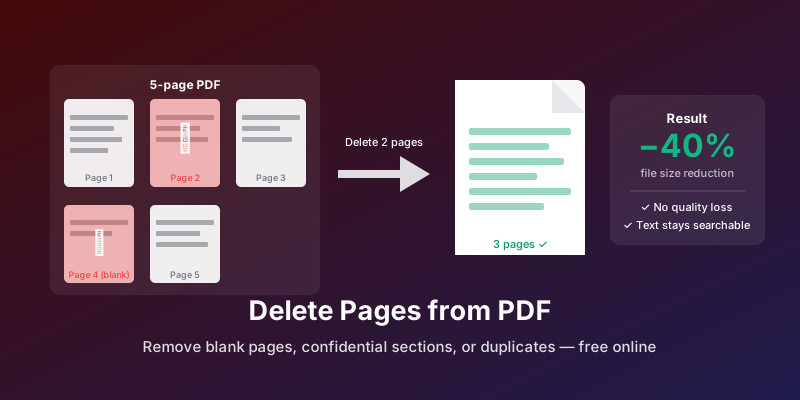
- Page thumbnails appear — click any page you want to remove. Selected pages are highlighted
- Click Delete Selected Pages
- Download the cleaned PDF
This approach is visual and forgiving — you can see exactly what you're removing before committing. If you select the wrong page, deselect it before clicking delete.
For bulk deletion (e.g., removing every other blank page from a scan), you can select multiple pages at once. For a 20-page scan where all even-numbered pages are blank, click pages 2, 4, 6, 8 ... 20 and delete them all in one operation.
Method 2: macOS Preview
Preview handles page deletion natively, without any installed software beyond what macOS includes.
- Open the PDF in Preview
- Show thumbnails: View → Thumbnails
- Select the pages you want to remove (Cmd+click for individual pages, Shift+click for ranges)
- Press Delete on your keyboard
- Save the file (Cmd+S)
Important: Preview saves in-place by default. Make a copy of the original file first if you want to preserve the unmodified version.
Method 3: Adobe Acrobat
If you have Adobe Acrobat (not just Reader):
- Open the PDF
- Go to Tools → Organize Pages
- Click on pages to select them (Shift+click for ranges)
- Click the trash icon to delete
- Save the file
Acrobat is powerful and handles complex PDFs reliably, but costs $20+/month for Pro access. For occasional page deletion, a free online tool is the practical alternative.
Method 4: Browser Print Trick (for Keeping Specific Pages)
This approach works in reverse — instead of deleting unwanted pages, you select only the pages you want to keep.
- Open the PDF in Chrome
- Press Ctrl+P (Windows) or Cmd+P (Mac)
- Set destination to Save as PDF
- In the Pages field, enter the page numbers you want to keep (e.g., 1-5, 8, 10-15)
- Save
The result contains only the pages you specified. This is effectively "deletion" by keeping the inverse. It's particularly quick when you want to keep a specific range and the pages you're removing are scattered.
Method Comparison
| Method | Skill Level | Cost | Selects Visually | Batch Delete | Platform |
|---|---|---|---|---|---|
| AllPDFMagic (online) | Beginner | Free | Yes (thumbnails) | Yes | Any browser |
| macOS Preview | Beginner | Free | Yes (thumbnails) | Yes | Mac only |
| Adobe Acrobat Pro | Intermediate | $20+/mo | Yes | Yes | Desktop + Cloud |
| Chrome Print trick | Beginner | Free | No (enter page #s) | Yes (specify ranges) | Any browser |
When to use each: AllPDFMagic for most situations — visual, free, no installation. Preview if you're on Mac and already have the file open. Chrome print trick for quick single-range keeps when you know exactly which pages to retain. Acrobat only if you already pay for it or need advanced editing alongside page management.
Working with Page Ranges
Most tools support flexible page range input:
- Individual pages:
3, 7, 12 - Ranges:
5-10 - Mixed:
1, 3, 5-8, 15-20
When deleting many non-consecutive pages, it's often faster to use the visual thumbnail method (clicking each page) rather than typing ranges. When deleting a large contiguous block, the range input is faster.
Preserving the Original File
Before deleting pages from any document, make a copy:
- Save the original to a backup folder
- Rename clearly (e.g.,
contract_ORIGINAL.pdfandcontract_pages_removed.pdf)
Page deletion is irreversible in the output file. If you delete the wrong pages and saved without a backup, recovery requires extracting the deleted pages from a previous version.
After Deleting Pages: What Changes
Removing pages from a PDF affects:
- Page count: Reduced by the number of removed pages
- Page numbering: If the PDF has embedded page number text (not just position-based numbering from the viewer), those numbers won't update automatically. If page numbers matter, you may want to add fresh page numbers using AllPDFMagic Number Pages after deletion.
- Table of contents links: Bookmarks or TOC entries that referenced deleted pages will point to nothing. If the document has a table of contents, it may need updating in Word before reconverting.
- File size: Proportionally reduced. A 10MB PDF with 30% of its pages removed becomes roughly 7MB.
What doesn't change:
- Quality of remaining pages (no re-encoding occurs)
- Searchability of text
- Interactive form fields on remaining pages
- Embedded fonts and images
Deleting Pages from a Scanned PDF
Scanned PDFs work exactly the same way for page deletion — each page is a self-contained image, and removing it doesn't affect surrounding pages. The visual thumbnail method is particularly useful here because you can see the actual content of each page before deciding to delete it.
Frequently Asked Questions
Can I undo a page deletion?
Not within the tool itself after downloading. This is why keeping a backup of the original before editing is important. If you still have the browser session open, closing without downloading leaves the original unchanged.
Does deleting pages reduce file size?
Yes, proportionally. Each PDF page carries its content data — images, text, fonts. Removing a page removes all that data from the file.
Can I delete pages from a password-protected PDF?
If the PDF has an owner password that restricts editing, you'll need to unlock it before you can delete pages. If it only has a user password (for opening), enter the password when prompted and proceed normally.
What's the difference between deleting pages and extracting pages?
Deleting removes specified pages and gives you the remainder. Extracting pulls specified pages into a new document and leaves the original untouched. Use deletion when you want to clean up a document; use extraction when you want to pull specific content out without modifying the source.
I deleted blank pages but the file is still large. Why?
Some blank-looking pages aren't truly blank — they may contain invisible content like form fields, annotations, or embedded blank images. These still carry file weight. After deleting and downloading, try running the result through AllPDFMagic Compress to further reduce size.
Can I delete alternating pages automatically?
Not through a simple "every other page" button in most tools. The practical approach: select the pages you want to remove by clicking thumbnails individually, or use the range input creatively (e.g., enter pages 2, 4, 6, 8 for even pages in a short document).
You might also find these guides helpful:
- Best Free PDF Reader Online — review your cleaned PDF in-browser
- OCR PDF: Extract Text from Scanned Documents — extract text from scanned pages
- How to Sign a PDF Online Free — add signatures after organizing
Frequently Asked Questions
Not within the tool itself after downloading. This is why keeping a backup of the original before editing is important. If you still have the browser session open, closing without downloading leaves the original unchanged.
Yes, proportionally. Each PDF page carries its content data — images, text, fonts. Removing a page removes all that data from the file.
If the PDF has an owner password that restricts editing, you'll need to unlock it before you can delete pages. If it only has a user password (for opening), enter the password when prompted and proceed normally.
Deleting removes specified pages and gives you the remainder. Extracting pulls specified pages into a new document and leaves the original untouched. Use deletion when you want to clean up a document; use extraction when you want to pull specific content out without modifying the source.
Some blank-looking pages aren't truly blank — they may contain invisible content like form fields, annotations, or embedded blank images. These still carry file weight. After deleting and downloading, try running the result through AllPDFMagic Compress to further reduce size.
Not through a simple "every other page" button in most tools. The practical approach: select the pages you want to remove by clicking thumbnails individually, or use the range input creatively (e.g., enter pages 2, 4, 6, 8 for even pages in a short document). You might also find these guides helpful: - Best Free PDF Reader Online — review your cleaned PDF in-browser - OCR PDF: Extract Text from Scanned Documents — extract text from scanned pages - How to Sign a PDF Online Free — add signatures after organizing