Word to PDF: The Complete Conversion Guide for 2026
Convert Word to PDF without layout shifts or broken links. Covers all methods — native Word export, Google Docs, online tools, and LibreOffice.
Converting a Word document to PDF sounds trivial until something goes wrong — the fonts change, a table spills onto an extra page, hyperlinks stop working, or a carefully formatted header disappears. These issues are common enough that understanding why they happen is worth a few minutes, especially if you send documents to people who will notice.
This guide covers every reliable conversion method, explains what affects output quality, and gives you a checklist to catch problems before they reach anyone else.
Why Convert Word to PDF?
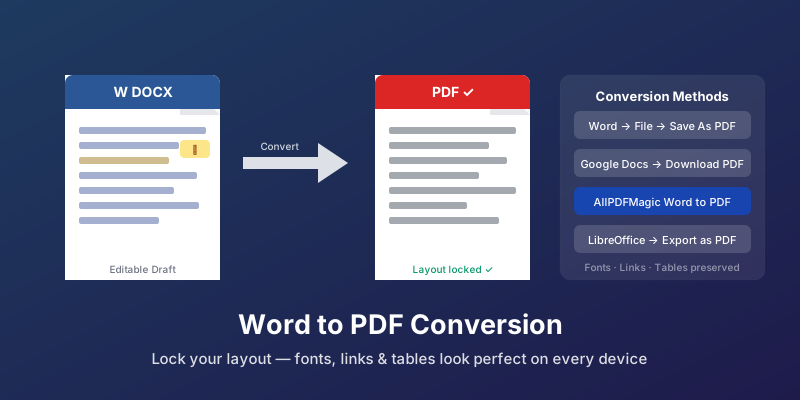
The simple answer: PDF is the delivery format, DOCX is the authoring format.
When you send a DOCX file, the recipient's version of Word (or Google Docs, or LibreOffice) re-renders the document on their system. If they have different fonts installed, an older version of Office, or a slightly different default printer driver, the layout shifts. Paragraphs reflow. Headers move. A document that looked polished on your screen looks broken on theirs.
A PDF prevents this entirely. The layout is locked — it looks identical on every device and in every viewer. For contracts, proposals, invoices, presentations, and anything else that is finished and ready to be read (not edited), PDF is the right choice.
Method 1: Save Directly from Microsoft Word
The most reliable conversion method is also the most accessible: Word itself handles the conversion natively, using the same rendering engine that displayed the document.
Windows (Word 2010 and later):
- Open your document in Word
- Go to File → Save As (or File → Export)
- Choose PDF from the format dropdown
- Click Save
Alternatively: File → Export → Create PDF/XPS Document → Publish
Mac (Word for Mac):
- File → Save As
- Choose PDF from the Format menu
- Click Save
Or use File → Print → PDF (dropdown at bottom-left) → Save as PDF
The Word-native export preserves fonts (by embedding them), hyperlinks, bookmarks, table of contents links, and comments (optionally). For the overwhelming majority of documents, this produces the best possible output.
One setting worth checking: In the export dialog, look for an "Options" or "PDF Options" button. Ensure "Document structure tags for accessibility" is checked — this makes the PDF properly accessible for screen readers and also improves how search engines read the file.
Method 2: Google Docs to PDF
If your document lives in Google Docs:
- Open the document
- File → Download → PDF Document (.pdf)
Google Docs conversion is generally clean for standard formatting, but complex layouts — multi-column sections, precise table borders, custom page margins — can shift slightly. If formatting accuracy is critical, download as DOCX first, open in Word, and convert using the native method.
Method 3: Online Conversion (AllPDFMagic)
When you don't have Word installed, or you're working from a device that doesn't have Office:
- Go to AllPDFMagic Word to PDF
- Upload your DOCX, DOC, or RTF file
- Click Convert and download the PDF
The converter handles standard Word formatting including headings, tables, columns, images, and embedded fonts. It's the practical choice for quick conversions on any device without software prerequisites.
Method 4: LibreOffice
LibreOffice is a free, open-source office suite that opens DOCX files and exports to PDF.
- Open your DOCX file in LibreOffice Writer
- File → Export as PDF
- Configure options in the dialog (compression, accessibility, security)
- Export
LibreOffice is a solid option but handles some advanced Word features imperfectly — complex SmartArt diagrams, certain drawing objects, and highly customised styles may not render exactly as they appear in Word. Test the output before distributing.
What Affects Conversion Quality
Fonts
If your document uses a font that isn't installed on the system doing the conversion, the converter substitutes a fallback font. This changes character widths, line breaks, and page flow. Word's native export avoids this by embedding fonts in the PDF.
For online converters, ensure the document uses common fonts (Calibri, Arial, Times New Roman, Georgia) or that the DOCX itself has fonts embedded (Word → Options → Save → check "Embed fonts in the file").
Images
High-resolution images in a DOCX will be preserved at full quality in the PDF, though the file may be large. If you need a smaller PDF, convert first and then run through AllPDFMagic Compress.
Hyperlinks
Internal bookmarks and clickable URLs generally transfer to PDF correctly when using native Word export. With some online converters, links may become non-clickable text. Test by clicking a link in the output PDF before sending.
Track Changes and Comments
If your document has tracked changes, decide whether to accept or reject them before converting. Unresolved tracked changes appear differently in different converters — some show only the "accepted" version, some show both original and changed text.
Headers, Footers, and Page Numbers
These typically transfer without issue. If a header contains a dynamic field (like "page X of Y"), verify the output shows the correct values — some converters render these as the placeholder text rather than the calculated number.
Checking the Output Before Sending
Run through this quick checklist after converting:
- Open the PDF in a fresh browser tab (not your default PDF viewer, which may cache display preferences)
- Scroll through every page and check that layout matches the DOCX
- Click at least two hyperlinks to confirm they're functional
- Verify page count matches what you expect
- Check that headers and footers appear on the correct pages
- If the document has a table of contents, click a link to confirm it navigates correctly
- Check images for unexpected compression or displacement
This takes two minutes and catches most issues before they reach a client.
Converting Multiple Documents in Batch
If you regularly convert DOCX files — monthly reports, client proposals, recurring invoices — doing them one at a time is tedious. Options:
- Word macro: A simple VBA macro can iterate through a folder of DOCX files and export each as PDF
- Command line (LibreOffice): Convert your Word document to PDF now with AllPDFMagic Word to PDF — no software needed.
If you need to edit a PDF after conversion, use PDF to Word to convert it back.
libreoffice --convert-to pdf *.docx converts all DOCX files in a directory
- Dedicated batch converter: Several desktop applications handle batch jobs with queuing and naming rules
Frequently Asked Questions
Why does my PDF look different from my Word document?
The most common causes: a missing or substituted font, a floating image that shifted position, or a dynamic field that didn't update. Check the font embedding setting in Word's export options and accept all tracked changes before converting.
Can I convert Word to PDF on an iPhone or Android?
Yes. Open the DOCX in the Word app (free for viewing and basic editing), and use File → Print → Save as PDF (iOS) or share to a PDF-capable app. Alternatively, use AllPDFMagic Word to PDF in your mobile browser — upload the file from your Files or Documents app.
Does converting to PDF reduce image quality?
Word's native export applies moderate image compression by default. To preserve full image quality, go to the PDF export options and look for an image quality slider or "high quality" setting. For most documents, the default is fine for screen reading; increase quality only if printing at large sizes.
Can I convert a PDF back to Word later?
Yes. AllPDFMagic PDF to Word handles this. Native PDFs (created digitally) convert very cleanly. Scanned PDFs require OCR and may have minor text or layout variations.
Is the converted PDF searchable?
If your DOCX contains real text (as opposed to images of text), the converted PDF will be fully searchable. The text layer transfers directly into the PDF.
How do I password-protect the PDF after conversion?
After downloading the converted PDF, use AllPDFMagic Protect PDF to add a password, restrict printing, or prevent copying of text.
Need to convert presentations too? Try our PPT to PDF converter.
Convert your Word documents to PDF instantly with the free Word to PDF converter — no signup, no software, works on any device.
You might also find these guides helpful:
- Convert Word to PDF Online Free — quick Word to PDF conversion
- PDF to Word Conversion Best Practices — turn PDFs back into editable documents
- How to Convert PDF to Excel Free — extract tables into spreadsheets
Frequently Asked Questions
The most common causes: a missing or substituted font, a floating image that shifted position, or a dynamic field that didn't update. Check the font embedding setting in Word's export options and accept all tracked changes before converting.
Yes. Open the DOCX in the Word app (free for viewing and basic editing), and use **File → Print → Save as PDF** (iOS) or share to a PDF-capable app. Alternatively, use AllPDFMagic Word to PDF in your mobile browser — upload the file from your Files or Documents app.
Word's native export applies moderate image compression by default. To preserve full image quality, go to the PDF export options and look for an image quality slider or "high quality" setting. For most documents, the default is fine for screen reading; increase quality only if printing at large sizes.
Yes. AllPDFMagic PDF to Word handles this. Native PDFs (created digitally) convert very cleanly. Scanned PDFs require OCR and may have minor text or layout variations.
If your DOCX contains real text (as opposed to images of text), the converted PDF will be fully searchable. The text layer transfers directly into the PDF.
After downloading the converted PDF, use AllPDFMagic Protect PDF to add a password, restrict printing, or prevent copying of text. Need to convert presentations too? Try our PPT to PDF converter. Convert your Word documents to PDF instantly with the free Word to PDF converter — no signup, no software, works on any device. You might also find these guides helpful: - Convert Word to PDF Online Free — quick Word to PDF conversion - PDF to Word Conversion Best Practices — turn PDFs back into editable documents - How to Convert PDF to Excel Free — extract tables into spreadsheets