How to Compare Two PDF Documents and Track Changes (2026)
Need to find what changed between two PDF versions? Learn how to compare PDF documents for differences using AI — faster and smarter than manual review.
How to Compare Two PDF Documents and Track Changes (2026)
You receive version 3 of a 40-page contract. Version 2 is what you reviewed last week. Finding every change manually — scanning two dense documents side by side — takes 2–3 hours and you'll still miss something.
This is why document comparison tools exist. This guide covers how to compare two PDF documents for differences in 2026, what tools work best, and when to use each method.
The Problem with Manual PDF Comparison
When someone sends you a "revised" contract, policy, or regulatory filing, they rarely tell you exactly what changed. Reading both documents cover to cover is:
- Slow: 2–4 hours for a 40-page document
- Error-prone: Human attention drifts; subtle word changes slip through
- Stressful: High stakes documents deserve careful review, but time pressure forces shortcuts
The word "not" being added or removed from a liability clause changes everything. Manual review routinely misses this.
Method 1: AI-Powered Semantic Comparison (Best for Contracts and Legal Docs)
AllPDFMagic's Document Comparison tool uses AI to compare PDFs at the semantic level — it understands meaning, not just characters.
How to use it:
- Go to allpdfmagic.com/ai/compare-documents
- Upload the original document in the left dropzone
- Upload the revised document in the right dropzone
- Click Compare — results appear in under 30 seconds
What you get:
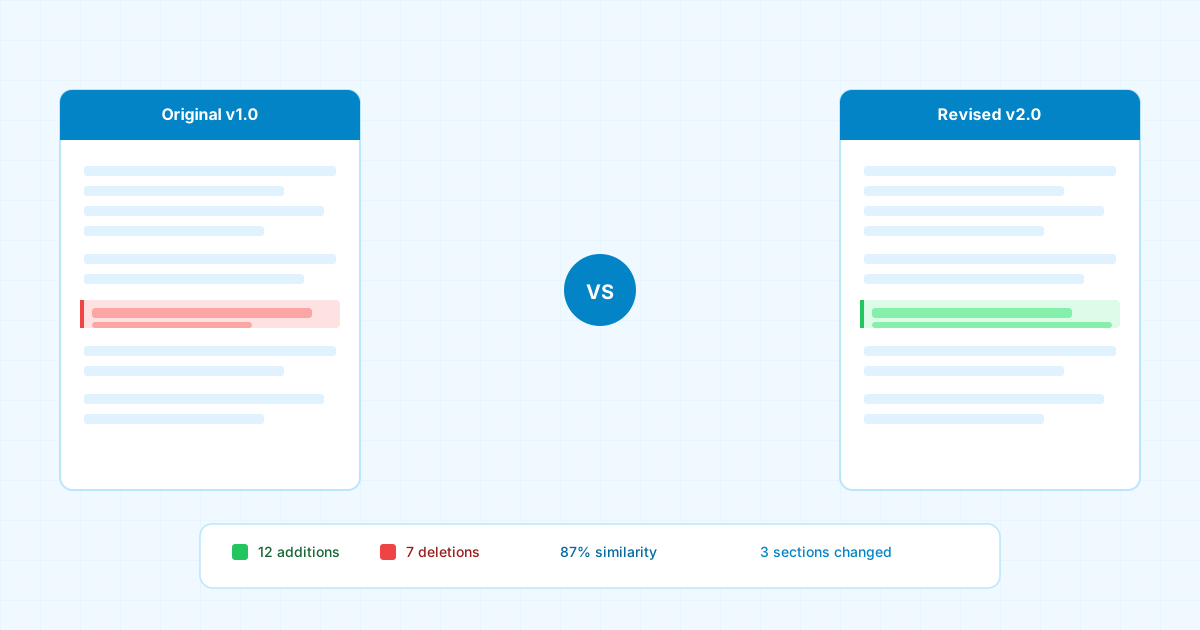
- Every addition highlighted in green
- Every deletion highlighted in red
- Similarity score (e.g., "94% similar — 47 changes found")
- Downloadable comparison report
Best for: Contracts, NDAs, policy documents, regulatory filings, academic papers, terms of service updates.
Method 2: Adobe Acrobat Compare (Paid, Desktop)
Adobe Acrobat Pro has a built-in compare feature under Tools → Compare Files.
Pros: Integrated with the PDF itself, familiar interface Cons: Requires Acrobat Pro ($239/year or $23/month), character-level diff misses semantic changes, struggles with scanned PDFs
Method 3: Microsoft Word Track Changes (Only Works for DOCX)
If you can convert the PDFs to Word first, you can use Word's built-in track changes comparison under Review → Compare.
Pros: Familiar to most users, good for text-heavy documents Cons: PDF-to-Word conversion often breaks formatting, loses meaning in complex layouts
Method 4: Draftable (Standalone Tool)
Draftable is a dedicated document comparison SaaS at ~$20/month.
Pros: Clean UI, side-by-side view Cons: Paid only for full features, no AI risk scoring, no integration with other workflows
Use Cases by Industry
Legal (Contract Redlines) The most common use case. When a counterparty sends a redlined contract, you need to verify every change. AI comparison catches changes to:
- Payment amounts and dates
- Liability caps
- Termination notice periods
- Any word-level substitution that changes meaning
Compliance (Policy Updates) Companies update internal policies regularly. HR, legal, and compliance teams need to verify what changed between versions for audit trails.
Finance (Regulatory Filings) SEC filings, earnings reports, and prospectuses are updated regularly. Investors and analysts compare versions to find material changes.
Quality Assurance (Technical Documentation) Software documentation, API specs, and product manuals need version tracking. Developers and technical writers use document comparison to verify change logs are accurate.
Reading a Comparison Report
When you get your comparison results, here's what to focus on:
High-priority changes to review:
- Numbers (amounts, percentages, dates) — any numeric change is material
- Negation words (not, never, no) — a single word flip can reverse an obligation
- Party names — make sure the correct legal entity is named throughout
- Defined terms — changes to definitions in section 1 affect the whole document
Lower-priority changes:
- Formatting adjustments (spacing, numbering)
- Boilerplate language with identical meaning
- Typo corrections
Comparing Scanned PDF Documents
If either document is a scanned image (not digitally created), you need a tool with OCR. AllPDFMagic applies OCR automatically before comparison — no extra steps needed.
Accuracy depends on scan quality. For best results:
- Scan at 300 DPI or higher
- Ensure good contrast between text and background
- Avoid documents with heavy watermarks over text
Try PDF Comparison Free
Upload two PDFs at allpdfmagic.com/ai/compare-documents — no account required. The comparison runs in under 30 seconds and shows every change highlighted in the browser.
For teams comparing documents regularly, Premium plan ($5.99/mo) supports larger files and unlimited comparisons.
Frequently Asked Questions
Yes — the comparison works at the semantic level, so a single word flip (like "not" being added or removed from a clause) is flagged, not just large block changes.
Yes. OCR runs automatically on scanned documents before comparison — no extra steps needed, though accuracy depends on scan quality (300 DPI or higher recommended).
It's a rough measure of how much content is unchanged between the two versions (e.g. "94% similar — 47 changes found") — useful for a quick sense of scale, but the specific highlighted changes matter more than the single number.
No — it works for any text-based PDF pair: policy updates, regulatory filings, technical documentation, or academic paper revisions all benefit from the same change-detection approach.